Usually preserved
- ✓ The main message and slide order
- ✓ Brand colors and type direction
- ✓ Useful charts, screenshots, and graphics
- ✓ Approved product language and proof
PowerPoint to video · PPTX to video
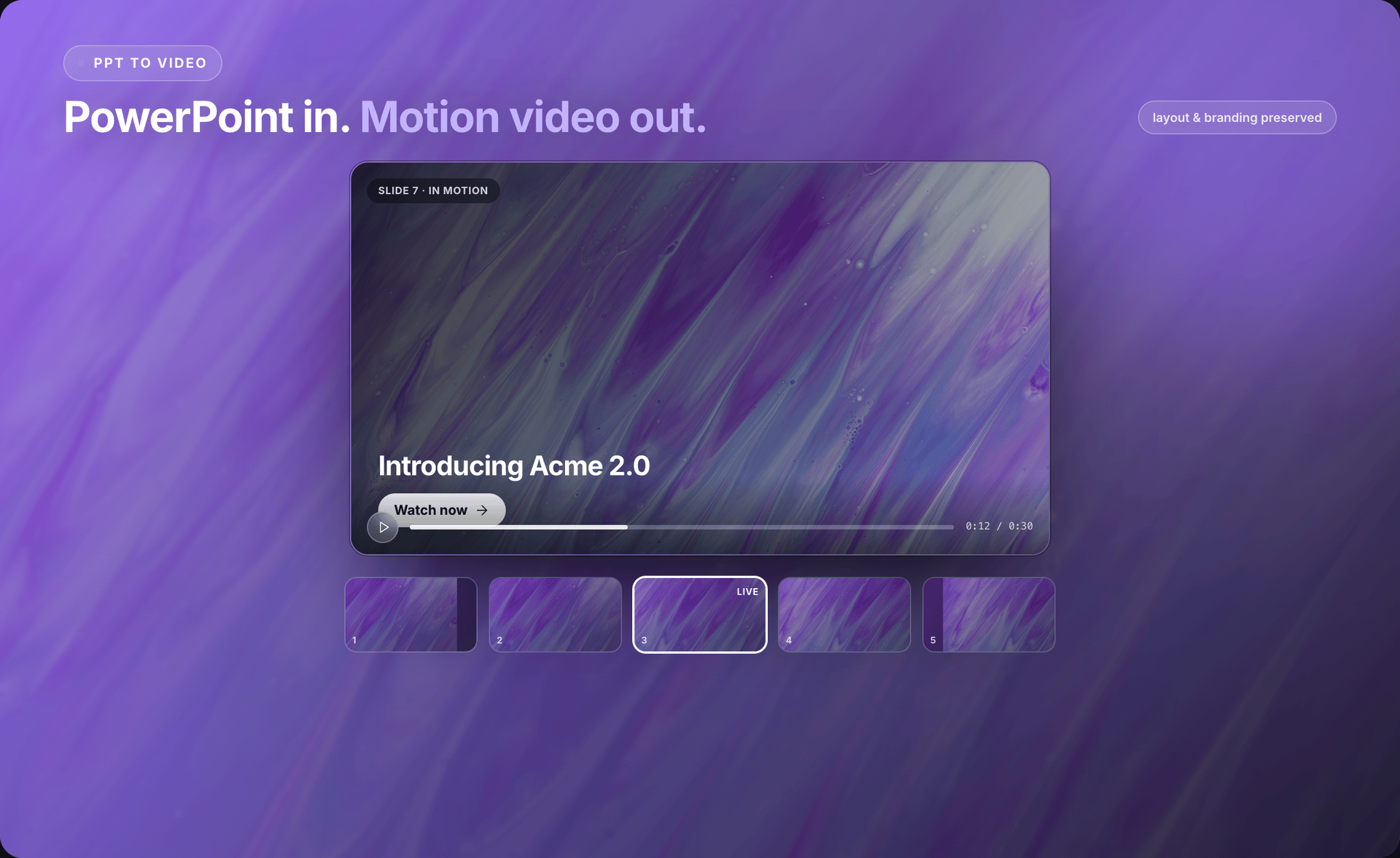
Upload a .pptx. Source To Video finds the strongest points, turns slides into paced scenes, and opens an editable first cut. No screen recording. No blank timeline.
Local .pptx → editable Studio project → MP4 on your machine.
Why start from the deck
Your deck already contains the message, order, proof, and visual style. Source To Video uses those decisions, so you do not rebuild the same story in a video editor from scratch.
It does not just play every slide for five seconds. It can split one crowded slide into focused scenes, remove repeated ideas, and make the opening stronger. The result is made to watch, not present.
Workflow
You can see what Source To Video understood, review what it built, and change the result before the final render.
01
Pick the PowerPoint from your computer — the version with the message, charts, screenshots, and visual direction you want. You do not need to flatten it into a video or export every slide as an image first.
02
The agent looks at slide order, headings, body copy, charts, screenshots, and repeated visual choices. Dense speaker notes or unclear slides may still need your judgment — which is why the result stays editable.
03
Source To Video plans an opening, builds the explanation, and gives the ending a clear next step. One slide can become one scene or several. Each scene gets a role and duration you can review.
04
Studio keeps scenes visible and editable. Ask for a focused change, preview it, and keep what works. When timing and message are right, render the MP4 on your Mac or Windows computer.
Slide DNA vs motion
A video should feel connected to the presentation, but it should not behave like a slideshow. Source To Video keeps the useful decisions and changes the parts that need motion, focus, or time.
When PowerPoint to video fits
The source can be familiar. The output should fit the job the viewer needs it to do.
Turn the problem, idea, and proof into a short story an investor can watch without a meeting.
Give a buyer a guided follow-up that explains the offer in the same order as your approved slides.
Break a topic into paced scenes so learners can follow the point without clicking through a file.
Bring the key findings forward and give charts or numbers enough time to land.
Move from the problem to the feature, benefit, and next step in one watchable piece.
Share progress, plans, and decisions with people who could not join the presentation.
Editable first cut
Direct Source To Video with the same language you would use with a teammate. Say what should lead, what should slow down, what should be removed, or how a scene should feel.
Specific requests work best. Point to a slide, scene, chart, or sentence. Preview the change, then give the next instruction. You stay responsible for the final message while the agent handles the editing work.

Recording vs rebuild vs STV
Cloud avatar tools often keep one slide per scene and narrate notes. Source To Video is for rebuilding dense slides into watchable motion while the project and final MP4 stay on your machine.
Local-first
Source To Video runs on Mac and Windows. Your PowerPoint, generated project files, and rendered MP4 remain on your computer. There is no cloud render queue for the final export.
AI work still needs context. Only the excerpts needed for a model request can travel over the network. Review sensitive material before using any AI tool.
FAQ
Straight answers on PPTX-to-video workflows, slide fidelity, recording alternatives, and local render.
PowerPoint to video means using a .pptx deck as the source for an editable motion-video project. Source To Video reads the slide order and useful content, then builds paced scenes you can refine in Studio before rendering an MP4 locally.
Download Source To Video for Mac or Windows. Open a .pptx, review the scenes, direct the changes, and render the final video on your machine.